One job per video, start to finish, in the real program, and short how-tos for what to make next. The newest videos show PrintMaster 2027, which opens your PrintMaster 18, v8 Platinum and PrintMaster 10 projects and has mail merge; the older tutorials say which version they show.
PrintMaster 2027 opens projects made in PrintMaster 18, PrintMaster v8 Platinum and PrintMaster 10. Pick the folder, check the previews, open the ones you want and keep editing in the new program.
Opens your PrintMaster 18, v8 Platinum and PrintMaster 10 projects
Mail merge for address labels, envelopes and cards, in both Deluxe and Professional
A one-time purchase for Windows 11 and 10, with no subscription
Bring in your address list from a spreadsheet saved as CSV, add the name and address fields to a label or envelope, preview the sheet and print a different name on every one. Perfect for the holiday card list.
Professional tour: address book, mail merge, tables and PDF
1 minute 29 seconds
How-to · PrintMaster 2027
A holiday card with your own words in a few minutes
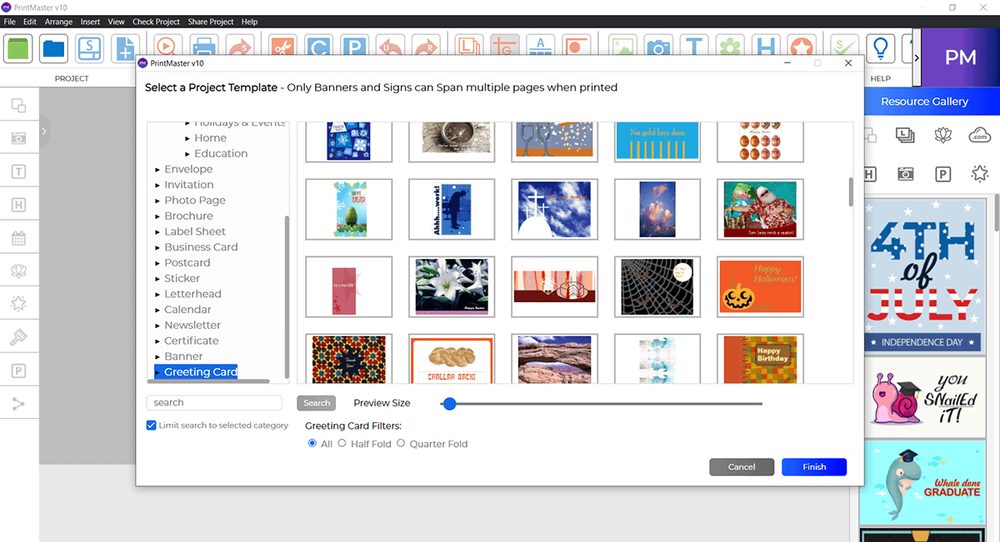
On the Home window choose Ready-Made Projects, then the Holidays & Seasons category.
Open a card, such as Christmas With Parents. It opens fully designed, front and inside.
Click the words on the inside page and type your own message over them.
Choose File, then Save, and give the card a name. Print it when you are happy with it.
How-to · PrintMaster 2027
Mail merge your holiday card list onto address labels
Open Ready-Made Projects, search for Address Labels and open a design such as Holly and Pine Christmas Address Labels.
On the Home tab, in Words & names, choose Mail merge.
In Mail Merge Configuration, import your address list from a spreadsheet saved as CSV, then insert the name and address fields where the address goes.
Choose Print Preview to check the sheet shows a different name on each label, then print.
Mail merge is in both Deluxe and Professional. Each contact is printed as its own label or card.
How-to · PrintMaster 2027
Open your PrintMaster 18, v8 Platinum or PrintMaster 10 projects
Start PrintMaster 2027. On the Start page, choose Open a file, then Older PrintMaster file.
Pick the folder that holds your projects. PrintMaster lists what it finds, with a preview of each.
Select one or more projects and choose Open. Each one opens as a new, unsaved project.
Change a word, swap a photo, then save and print.
Earlier versions
Tutorials for PrintMaster 2022, 10, v9 and v8 Platinum
PrintMaster 2022
The current Windows interface
What's new: borders, text in shapes, line patterns, Gmail sharing
A quick tour of the newer tools
Create unique greeting cards
PrintMaster tutorial
Working with headlines
PrintMaster tutorial
Working with the calendar
PrintMaster tutorial
Working with the address book
PrintMaster tutorial
Scratch projects and ready-made projects
PrintMaster tutorial
Quick review of the interface
PrintMaster tutorial
Edit text within a shape
PrintMaster tutorial
Create custom borders
PrintMaster tutorial
Working with clip art
PrintMaster tutorial
Working with backgrounds
PrintMaster tutorial
Working with photos, part 1
PrintMaster tutorial
Working with photos, part 2
PrintMaster tutorial
Fixing red eye
PrintMaster tutorial
Working with paint
PrintMaster tutorial
Shapes and lines, part 1
PrintMaster tutorial
Shapes and lines, part 2
PrintMaster tutorial
Shapes and lines, part 3
PrintMaster tutorial
Working with text boxes
PrintMaster tutorial
Print a card
PrintMaster tutorial
Save a project
PrintMaster tutorial
PrintMaster v9
The Windows-and-Mac line, the version before PrintMaster 10
Create from scratch
PrintMaster v9 · the Windows-and-Mac line before 10
Browse ready-made projects
PrintMaster v9 · the Windows-and-Mac line before 10
Working with headlines
PrintMaster v9 · the Windows-and-Mac line before 10
Using mail merge
PrintMaster v9 · the Windows-and-Mac line before 10
Working with business cards
PrintMaster v9 · the Windows-and-Mac line before 10
The classic line
PrintMaster Platinum v8
PrintMaster Platinum v8
Classic line · overview
Create from scratch using PrintMaster 8
Classic line · tutorial
Project · every edition
A birthday card and matching envelope in ten minutes
Open the greeting-card projects and pick a design. Every edition sorts them by occasion, so start from Birthday.
Click the photo placeholder and replace it with your own picture; drag the corners to fit it.
Click the headline and the inside verse and type over them. Gold v19 also offers ready-written sentiments.
Print. The print dialog folds the card for you: quarter-fold on one sheet, or half-fold two-sided if your printer supports it.
Open the matching envelope from the same design set, add the address, and print it on an envelope.
How-to · PrintMaster 10, 2022 and v8 Platinum
Mail merge your holiday envelopes from the address book
Open the address book and import your contacts once, from a spreadsheet saved as CSV.
Open an envelope or label project and insert the merge fields (name, address lines, town, ZIP) where the address goes.
Preview a few records to check that long names and second address lines still fit.
Print the run. Labels print to the sheet position you choose, so a part-used sheet is not wasted.
Gold v19's product page does not list an address book; use PrintMaster 10 or 2022 for mail merge.
Classic · older files
Opening the PrintMaster projects you made years ago
PrintMaster 2022 does not open projects from PrintMaster 18.1 or earlier.
PrintMaster v8 Platinum imports projects from PrintMaster 2011, 2012, 5.0, 6.0 and 7.0 only. Other versions do not load.
Classic PrintMaster projects (versions 8 through 18.1) open in The Print Shop 24, which also opens The Print Shop 10 through 24 and American Greetings CreataCard 5 and later.
PrintMaster 10 and Gold v19 publish no statement about older files. If you have projects to keep, ask us before you buy: [email protected].
Loading...
We use cookies to keep your cart, remember your preferences and understand how the store is used. You can decline the ones the store does not need. Privacy policy